> For the complete documentation index, see [llms.txt](https://docs.openmind.com/llms.txt). Markdown versions of documentation pages are available by appending `.md` to page URLs; this page is available as [Markdown](https://docs.openmind.com/full-autonomy-guidelines/features/auto-charging.md).
# Auto Charging
Autonomous docking and charging, with per-map charger locations.
For a robot that's meant to run all day, someone plugging it in defeats the purpose. Auto-charging lets it take itself to the dock and charge — and because you can save a charger location per map, it knows where the dock is in each space it works. Paired with [patrol](/full-autonomy-guidelines/features/patrol.md), it closes the loop: patrol until low, dock, charge, resume.
It's supported on the **Unitree Go2** and the **Deep Robotics M20 Pro**, and needs navigation running. Docking uses each platform's own launch (`go2_charge_launch.py` / `m20_charge_launch.py`), and there's no sim gate — auto-charging works the same in the [Cloud Simulator](/simulators/cloud-isaac-sim.md) as on hardware. See [Robot & simulation support](/full-autonomy-guidelines/features/robot-support.md).
### In the portal
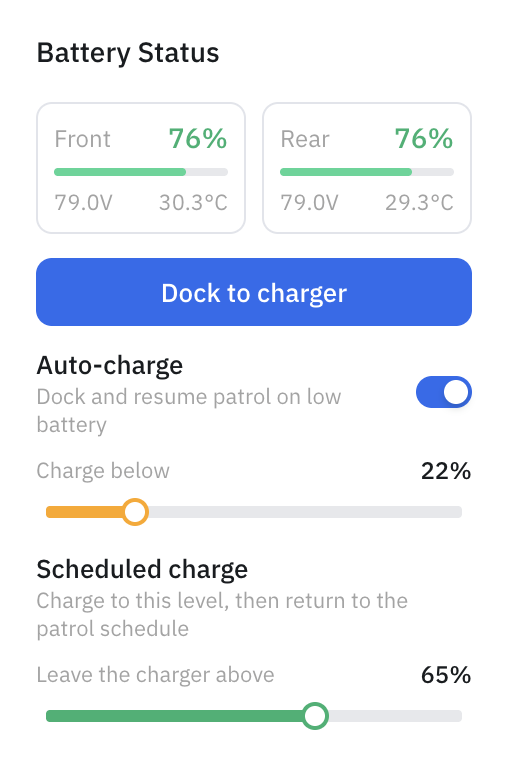
The [OpenMind portal](https://portal.openmind.com) shows live battery state and lets you send the robot to dock (and stop docking) from the machine view. Under **Battery Status** you'll find **Dock to charger**, an **Auto-charge** toggle ("Dock and resume patrol on low battery") with a **Charge below** threshold, and a **Scheduled charge** control that sets the level to **leave the charger above** before rejoining the [patrol schedule](/full-autonomy-guidelines/features/patrol.md#scheduling-patrols). On a multi-pack robot like the M20 Pro, battery state is shown per pack (front / rear).
 ### Autonomous charging on low battery
Rather than dock on command, let the robot dock itself when the battery gets low. Turn it on and set the threshold it triggers at:
```bash
curl -X POST http://:5000/charging/auto -H 'Content-Type: application/json' -d '{"enabled": true}'
curl -X POST http://:5000/charging/auto_charge_threshold -H 'Content-Type: application/json' -d '{"threshold": 15}'
```
Set the level it should reach before it leaves the dock again (the "leave the charger above" value), so it departs with enough charge to be useful:
```bash
curl -X POST http://:5000/charging/min_depart_soc_threshold -H 'Content-Type: application/json' -d '{"threshold": 90}'
```
To bring the robot back off the dock yourself, undock (and watch or cancel it):
```bash
curl -X POST http://:5000/charging/undock -H 'Content-Type: application/json' -d '{}'
curl http://:5000/charging/undock/status
curl -X POST http://:5000/charging/undock/cancel -H 'Content-Type: application/json' -d '{}'
```
### Docking and monitoring
Send the robot to dock:
```bash
curl -X POST http://:5000/charging/dock -H 'Content-Type: application/json' -d '{}'
```
Watch the battery and docking state:
```bash
curl http://:5000/charging/status
```
You get back `is_charging`, `battery_soc` (%), `battery_current` (mA — negative discharging, positive charging), `battery_voltage`, `battery_temperature`, `dock_process_running`, and `charging_confirmation_pending` (charging detected but not yet confirmed).
Abort or undock:
```bash
curl -X POST http://:5000/charging/stop -H 'Content-Type: application/json' -d '{}'
```
### Telling the robot where the dock is
Read the current charger waypoints, optionally for a specific map:
```bash
curl "http://:5000/charging/location?map_name=office"
```
OM1 resolves the location in order — a **per-map override**, then a **global waypoint file**, then **built-in defaults** — and the `source` field in the response tells you which one it used.
If the robot docks in the wrong place, save a per-map override with a `predock` staging pose and the `charger` pose:
```bash
curl -X POST http://:5000/charging/location/save \
-H 'Content-Type: application/json' \
-d '{"map_name": "office",
"predock": {"position": {"x": 0.5, "y": -2.0, "z": 0}, "orientation": {"x":0,"y":0,"z":-0.707,"w":0.707}},
"charger": {"position": {"x": 0.5, "y": -1.0, "z": 0}, "orientation": {"x":0,"y":0,"z":-0.707,"w":0.707}}}'
```
### If something goes wrong
* **`400` / "Charging is not supported for \"** — the robot type isn't a Go2 or M20, navigation isn't running, or it's already charging/docking.
* **`400` on save** — a field is missing, a pose failed validation, or the `map_name` is invalid or doesn't exist.
* **Wrong dock spot** — save a per-map override as above.
For system endpoints like `GET /status` and base control, see the [Autonomy API Overview](/full-autonomy-guidelines/api_endpoints.md).
---
# Agent Instructions
This documentation is published with GitBook. GitBook is the documentation platform designed so that both humans and AI agents can read, navigate, and reason over technical content effectively. Learn more at gitbook.com.
## Querying This Documentation
If you need additional information that is not directly available in this page, you can query the documentation dynamically by asking a question.
Perform an HTTP GET request on the current page URL with the `ask` query parameter, and the optional `goal` query parameter:
```
GET https://docs.openmind.com/full-autonomy-guidelines/features/auto-charging.md?ask=&goal=
```
`ask` is the immediate question: it should be specific, self-contained, and written in natural language.
`goal` is optional and describes the broader end goal you are ultimately trying to accomplish on behalf of the user. GitBook uses it to tailor the answer towards what is most useful for that goal.
The response will contain a direct answer to the question and relevant excerpts and sources from the documentation.
Use this mechanism when the answer is not explicitly present in the current page, you need clarification or additional context, or you want to retrieve related documentation sections.
### Autonomous charging on low battery
Rather than dock on command, let the robot dock itself when the battery gets low. Turn it on and set the threshold it triggers at:
```bash
curl -X POST http://:5000/charging/auto -H 'Content-Type: application/json' -d '{"enabled": true}'
curl -X POST http://:5000/charging/auto_charge_threshold -H 'Content-Type: application/json' -d '{"threshold": 15}'
```
Set the level it should reach before it leaves the dock again (the "leave the charger above" value), so it departs with enough charge to be useful:
```bash
curl -X POST http://:5000/charging/min_depart_soc_threshold -H 'Content-Type: application/json' -d '{"threshold": 90}'
```
To bring the robot back off the dock yourself, undock (and watch or cancel it):
```bash
curl -X POST http://:5000/charging/undock -H 'Content-Type: application/json' -d '{}'
curl http://:5000/charging/undock/status
curl -X POST http://:5000/charging/undock/cancel -H 'Content-Type: application/json' -d '{}'
```
### Docking and monitoring
Send the robot to dock:
```bash
curl -X POST http://:5000/charging/dock -H 'Content-Type: application/json' -d '{}'
```
Watch the battery and docking state:
```bash
curl http://:5000/charging/status
```
You get back `is_charging`, `battery_soc` (%), `battery_current` (mA — negative discharging, positive charging), `battery_voltage`, `battery_temperature`, `dock_process_running`, and `charging_confirmation_pending` (charging detected but not yet confirmed).
Abort or undock:
```bash
curl -X POST http://:5000/charging/stop -H 'Content-Type: application/json' -d '{}'
```
### Telling the robot where the dock is
Read the current charger waypoints, optionally for a specific map:
```bash
curl "http://:5000/charging/location?map_name=office"
```
OM1 resolves the location in order — a **per-map override**, then a **global waypoint file**, then **built-in defaults** — and the `source` field in the response tells you which one it used.
If the robot docks in the wrong place, save a per-map override with a `predock` staging pose and the `charger` pose:
```bash
curl -X POST http://:5000/charging/location/save \
-H 'Content-Type: application/json' \
-d '{"map_name": "office",
"predock": {"position": {"x": 0.5, "y": -2.0, "z": 0}, "orientation": {"x":0,"y":0,"z":-0.707,"w":0.707}},
"charger": {"position": {"x": 0.5, "y": -1.0, "z": 0}, "orientation": {"x":0,"y":0,"z":-0.707,"w":0.707}}}'
```
### If something goes wrong
* **`400` / "Charging is not supported for \"** — the robot type isn't a Go2 or M20, navigation isn't running, or it's already charging/docking.
* **`400` on save** — a field is missing, a pose failed validation, or the `map_name` is invalid or doesn't exist.
* **Wrong dock spot** — save a per-map override as above.
For system endpoints like `GET /status` and base control, see the [Autonomy API Overview](/full-autonomy-guidelines/api_endpoints.md).
---
# Agent Instructions
This documentation is published with GitBook. GitBook is the documentation platform designed so that both humans and AI agents can read, navigate, and reason over technical content effectively. Learn more at gitbook.com.
## Querying This Documentation
If you need additional information that is not directly available in this page, you can query the documentation dynamically by asking a question.
Perform an HTTP GET request on the current page URL with the `ask` query parameter, and the optional `goal` query parameter:
```
GET https://docs.openmind.com/full-autonomy-guidelines/features/auto-charging.md?ask=&goal=
```
`ask` is the immediate question: it should be specific, self-contained, and written in natural language.
`goal` is optional and describes the broader end goal you are ultimately trying to accomplish on behalf of the user. GitBook uses it to tailor the answer towards what is most useful for that goal.
The response will contain a direct answer to the question and relevant excerpts and sources from the documentation.
Use this mechanism when the answer is not explicitly present in the current page, you need clarification or additional context, or you want to retrieve related documentation sections.